Incoming Logs & Query Rules
Hunt Through 32 Days of Mail
The Incoming Log Search is your forensics tool—it lets you dig through the past 32 days of messages, quarantined items, and delivery queue entries to find exactly what you’re looking for. Need to find all emails from a sketchy sender? Recover something that got blocked? Find messages that triggered multiple spam filters? Query Rules make it possible.
Getting There
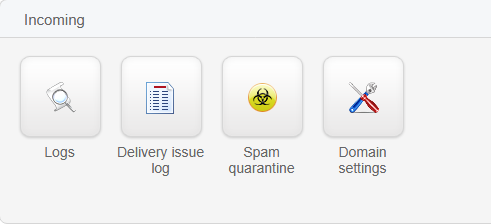
Navigate to Incoming > Logs in your Admin, Domain, or Email level Control Panel.
How Query Rules Work
Query Rules are built on a simple formula—three ingredients:
- The Field — What part of the message you’re searching (sender, subject, size, etc.)
- The Operator — How to match it (contains, equals, starts with, etc.)
- The Value — What you’re actually looking for
For example: Subject contains invoice finds all messages with “invoice” in the subject line.
You can stack multiple rules together using All (every rule must match) or Any (at least one rule matches).

All Query Rule Possibilities and Types
| Field Category | Field Name | Match Types | What It Does |
|---|---|---|---|
| Message Identification | Message ID | • Contains • Equals • Starts With • Ends With • Matches | Find specific messages by their unique ID |
| Admin | • Equals | Filter by admin account | |
| Domain | • Equals | Filter by domain name | |
| Filtering Host | • Equals | Filter by the server that processed it | |
| Time & Date | Timestamp | • On • Before • After • Between • Previous • Since last run | Search by when the message arrived. Quick shortcuts for Yesterday, Last week, Last month |
| Sender Info | Sender | • Contains • Equals • Starts With • Ends With • Matches | Find messages from specific email addresses |
| Sender Hostname | • Contains • Equals • Starts With • Ends With • Matches | Search by the sending server’s hostname | |
| Sender IP | • Contains • Equals • Starts With • Ends With • Matches | Find messages from specific IP addresses (useful for blocking botnets) | |
| Sender Location | • Equals | Filter by geographic location of sender | |
| Recipients | Recipient | • Contains • Equals • Starts With • Ends With • Matches | Find messages sent to specific addresses |
| To | • Contains • Equals • Starts With • Ends With • Matches | Search message headers (To field) | |
| CC | • Contains • Equals • Starts With • Ends With • Matches | Search CC’d recipients | |
| Message Content | Subject | • Contains • Equals • Starts With • Ends With • Matches | Search by subject line (great for phishing attempts) |
| From | • Contains • Equals • Starts With • Ends With • Matches | Search the From header (can differ from envelope sender) | |
| Original Message ID | • Equals | Find bounced or forwarded messages by original ID | |
| Message Size | Bytes Received | • Less Than • Greater Than • Equals | Find oversized attachments or tiny spam |
| Bytes Sent | • Less Than • Greater Than • Equals | Filter by outgoing data size | |
| Classification | Main Class | • Equals | Filter by main spam classification (Spam, Virus, Malware, etc.) |
| Sub Class | • Equals | Narrow down by subclass (different spam types) | |
| Extra Class | • Equals | Additional classification metadata | |
| Error Class | • Equals | Find messages with delivery errors | |
| Delivery | Delivery Date | • On • Before • After • Between | When the message was actually delivered |
| IP | • Contains • Equals | IP address of delivery server | |
| Hostname | • Contains • Equals | Delivery server hostname | |
| Port | • Equals | SMTP port used for delivery | |
| Interface | • Equals | Network interface that received it | |
| Message Status | Status | • Equals | Current state (Delivered, Quarantined, In Queue, etc.) |
Finding & Acting on Messages
Step 1: Access the Incoming Logs
Go to the Incoming tab on the main dashboard. You’ll see the logs summary and the Query Rules panel.
Step 2: Build Your Query Rules
Click New Rule to add a filter. Select your field, operator, and value. Stack multiple rules as needed.

Step 3: Show Results
Click the blue Show Results button to execute your search across 32 days of mail history.

Step 4: Select Messages
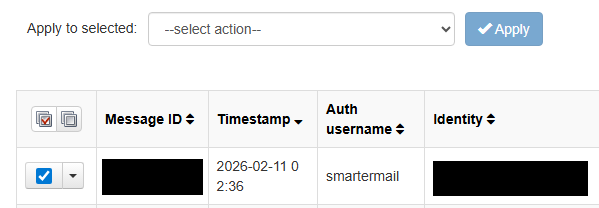
Review the results and check the boxes next to any messages you want to act on.
Step 5: Apply Actions
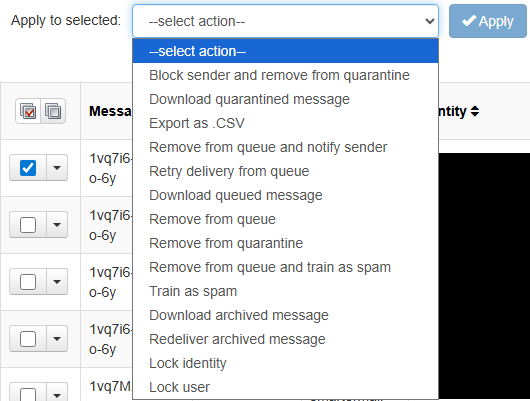
Select the action you want (Release, Delete, Whitelist, Blacklist, etc.) and click Apply to execute it on the selected messages.
Pro Tips
Finding False Positives: Use Main Class Equals Spam + Sender Equals [email protected] to find emails from trusted senders that got flagged.
Tracking Malware: Search Main Class Equals Virus or Malware to find infected messages by date range. Great for incident response.
Recovering Quarantined Mail: Use Status Equals Quarantined + Recipient Equals [email protected] to find what got blocked for a specific user.
Identifying Spam Campaigns: Search Subject Contains limited time offer to catch common phishing/spam themes across your domain.