Filter Settings
Fine-Tune Your Spam Defense
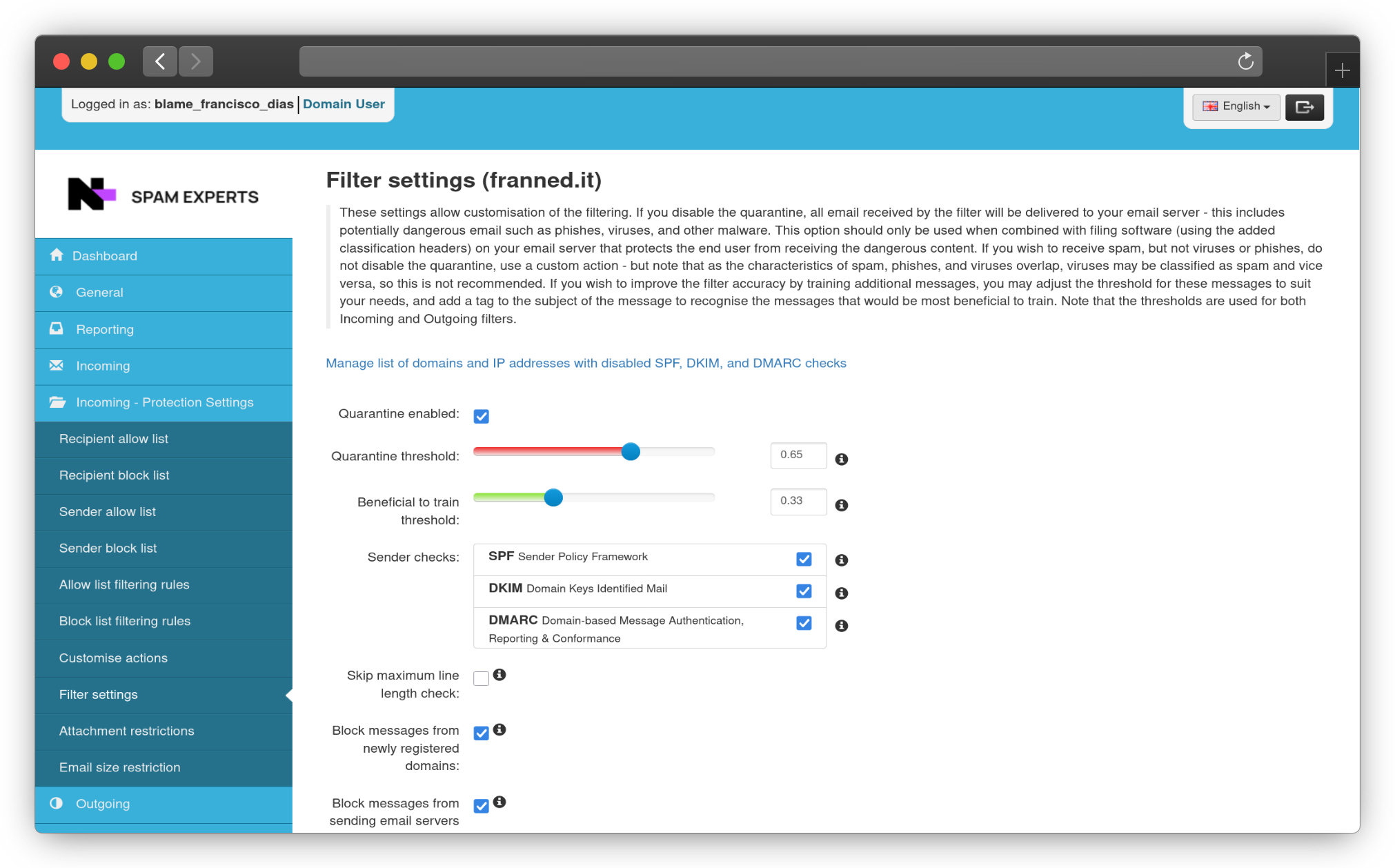
Filter Settings is where you can customize how aggressive the incoming spam filter is for your domain.
Caution
IMPORTANT: Only Change These Two Settings:
- Sender Authentication Checks (SPF, DKIM, DMARC) — Safe to enable/disable
- Spam Threshold — Safe to adjust for your needs
Unless you know exactly what you’re doing, we strongly recommend NOT changing any settings on this page. These are expertly configured for optimal performance.
Changing these can break your mail flow, cause false positives, or compromise security.
🆘 Need to make your filter stricter or laxer? Contact our expertly trained support team through the support portal. We’ll adjust it for you sanely.
⚠️ OUTGOING FILTERS: The outgoing filter settings are fully managed by Nathanael LLC. You cannot change these. If you need adjustments/have false positive, contact support.
Core Settings
Quarantine Enabled
Toggle the quarantine on or off. When enabled, suspicious messages go to quarantine instead of being delivered or deleted.
What happens when it’s ON: Spam and phishing messages get quarantined and you can review them before they reach users.
What happens when it’s OFF: All email gets delivered (including spam, phishes, and viruses). Only use this if you have email security software on your mail server filtering by the classification headers SpamExperts adds.
Spam Threshold (Quarantine Threshold)
Set how aggressive the spam filter should be. This is a score from 0.0 (almost certainly not spam) to 1.0 (almost certainly spam).
How it works: Messages scoring above this threshold get quarantined.
Default: 0.65 (recommended)
Quick guide:
- Lower (0.50-0.60): Stricter—catches more spam but risks blocking legitimate mail
- Default (0.65): Sweet spot for most domains
- Higher (0.70-0.80): Looser—more spam gets through, but fewer false positives
Beneficial to Train Threshold
Messages scoring between this threshold and the spam threshold are marked as “beneficial to train”—meaning they’d help improve the filter if you classified them as spam or legitimate.
Default: 0.33
Lower values = more messages flagged for training (useful if you want to actively train the filter)
Higher values = fewer messages flagged (cleaner inbox, but slower filter improvement)
Sender Authentication Checks
These powerful tools verify that emails really come from who they claim to be.
SPF (Sender Policy Framework)
Checks if the sending server’s IP address is authorized to send email for that domain.
Enable if: You want to block spoofed emails claiming to be from trusted domains. ✅ Recommended.
DKIM (DomainKeys Identified Mail)
Cryptographically signs emails to prove they came from the legitimate domain and haven’t been tampered with.
Enable if: You want to verify email authenticity and detect tampering. ✅ Recommended.
DMARC (Domain-based Message Authentication, Reporting & Conformance)
The boss of email authentication—combines SPF and DKIM, adds reporting, and lets senders specify how to handle failures.
Enable if: You want the strongest email authentication. ✅ Recommended.
Tip
All three are recommended enabled. They block spoofing attacks without false positives.
Additional Protection Options
Block Messages from Newly Registered Domains
Quarantine emails from domains registered less than 24 hours ago. Scammers love brand-new domains.
Default: Enabled ✅
Disable if: You regularly receive legitimate email from brand-new business partners.
Block Messages Without Valid PTR Records
Quarantine emails from servers without proper reverse DNS (PTR) records. Legitimate mail servers have these; spam bots usually don’t.
Default: Enabled ✅
Disable if: You work with mail servers that don’t have PTR records configured (rare).
Skip Maximum Line Length Check
Email standards require lines to be under a certain length. Some badly-coded applications violate this. You can disable the check if needed.
Default: Disabled (enforces the standard)
Enable if: You receive legitimate email from poorly-written applications that violate RFC standards.
Notation Settings
Add tags to email subjects so you can identify and organize filtered messages.
Beneficial to Train Notation
Prepend a tag to messages the filter couldn’t decisively classify (between the training threshold and spam threshold).
Example: Leave blank (recommended) or use something like [TRAIN] to flag them for review.
Leave empty to treat them as legitimate—users see them normally.
Spam Notation
Prepend a tag to messages classified as spam (only shown when quarantine is disabled).
Default: [spam]
This helps users identify spam-tagged messages in their inbox when quarantine is off.
Quarantine Response
Choose how the system responds when it quarantines a message.
| Option | What It Does |
|---|---|
| Rejected | Sender receives a message saying it was rejected (most common) |
| Accepted | Sender receives acceptance, but message is quarantined (for testing) |
Default: Rejected
TLS/Encryption Settings
Require secure encrypted connections for email transmission.
Incoming Email TLS Handling
Choose how SpamExperts handles TLS (encryption) for incoming mail:
| Option | What It Does |
|---|---|
| Default (Recommended) | Use TLS when possible, accept unencrypted email |
| Auto | Always try TLS first, then fall back to unencrypted |
| Any | Only accept encrypted email from ANY sender/recipient |
| Specific | Only accept encrypted email from specific senders/recipients you list |
Recommendation: Use default unless you have strict security requirements.
Delivery to Destination TLS Handling
Choose how SpamExperts enforces TLS when sending email to your mail server:
Same options as incoming, controls outbound encryption from SpamExperts to your servers.
DANE Settings
DANE (DNS-based Authentication of Named Entities) enforces strict TLS validation using DNSSEC—the hardcore version of encryption.
Require DANE Validation
Enforce DANE for specific mail servers. If DANE validation fails, the message won’t be delivered.
Only use if:
- You have mail servers with DANE records configured
- You need maximum security for specific destinations
- You understand that failed DANE validation = message rejection
Default: Use default handling (recommended)
Warning
DANE is powerful but unforgiving. Only require it for servers you control and that support it.
When to Adjust These Settings
Spam threshold too high? (Too much spam getting through)
- Lower the quarantine threshold from 0.65 to 0.60
- Enable all sender checks (SPF, DKIM, DMARC)
- Enable newly registered domain blocking
Too many false positives? (Legitimate mail getting blocked)
- Raise the quarantine threshold from 0.65 to 0.70
- Check Sender Allow Lists for trusted senders
- Use Whitelisting for important addresses
Want to improve filter accuracy?
- Lower the “Beneficial to Train” threshold (0.25-0.30)
- Add a notation tag to training messages
- Train messages at Train Messages page regularly