Checking False-Positive Spam Mails
Oops, That Wasn’t Spam!
Sometimes legitimate emails get caught in SpamExperts’ nets, a trusted vendor, an important client, or your grandmother’s photo of her garden. The good news? They’re not deleted. Instead, they get sent to Spam Quarantine, where you can review them, preview them, and take action.
Getting There
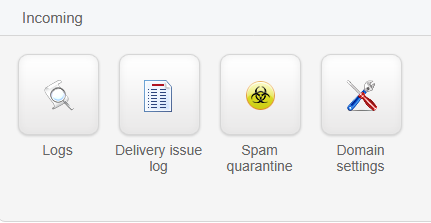
Navigate to the dashboard and click Spam Quarantine under the Incoming tab.
What You Can Do in Spam Quarantine
Search for Specific Messages
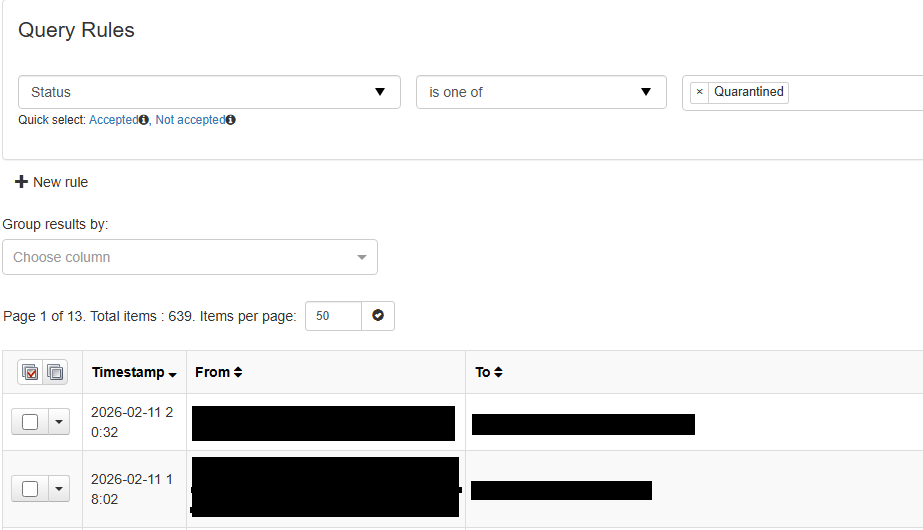
Use the Query Rules panel to hunt down specific quarantined messages. You can search by:
- Sender email address
- Subject line
- Date received
- And much more (see Incoming Logs & Query Rules for all available filters)
Clear all rules to see every quarantined message processed.
Preview Message Content
Click on any message’s Subject link to read the full email content before taking action. This lets you confirm it’s actually legitimate before releasing it.
Take Action on Messages
Once you’ve found the false positives, you have options:
| Action | What It Does |
|---|---|
| Release | Send it to the recipient’s inbox immediately |
| Whitelist Sender | Never flag emails from this sender again |
| Delete | Permanently remove it from quarantine |
| Move to Spam | (If released by mistake) Send it back to quarantine |
Releasing False Positives
Step 1: Find & Select
Using Query Rules, find the quarantined emails you want to release. Check the boxes next to them.
Step 2: Choose Your Action
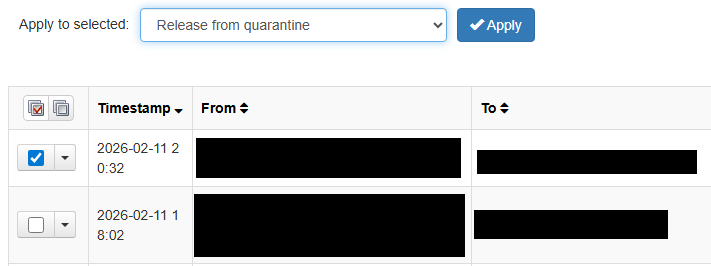
In the dropdown menu, select the action you want to take (Release, Whitelist Sender, Delete, etc.).
Step 3: Apply
Click Apply to execute the action on all selected messages.
Pro Tip: Preventing Future False Positives
If you’re seeing a lot of legitimate mail from a specific sender getting caught, Whitelist them instead of just releasing one message. That way, all future emails from that sender skip the spam filter entirely.
Want to tune your spam filter globally? Check out Attachment Restrictions and Content Filtering to customize what gets blocked.