Attachment Restrictions
Attachment Restrictions 101
Think of this as your email bouncer. The Attachment Restrictions page lets you decide which file types are allowed through the door and which ones get kicked out, blocking dangerous executables, password-protected archives, hidden exploits, and macro-laden documents. SpamExperts comes with sensible defaults, but you can customize everything.
Finding It
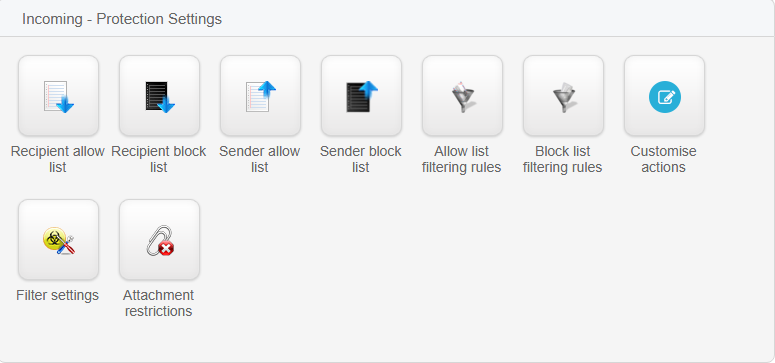
Navigate to Incoming - Protection Settings > Attachment restrictions from the dashboard.
Default Protection
SpamExperts ships with pre-configured dangerous extensions already blocked. Here’s what you’re getting out of the box:
| Default Blocked Extensions | Default Scanned Link Extensions |
|---|---|
| .ade | .bat |
| .adp | .btm |
| .bat | .cmd |
| .btm | .cpl |
| .chm | .dll |
| .cmd | .exe |
| .com | .lnk |
| .cpl | .msi |
| .dll | .pif |
| .docm | .prf |
| .exe | .reg |
| .hta | .scr |
| .ins | .url |
| .isp | .vbs |
| .jar | |
| .js | |
| .jse | |
| .lib | |
| .ink | |
| .mde | |
| .msc | |
| .msi | |
| .msp | |
| .mst | |
| .ngh | |
| .pif | |
| .prf | |
| .reg | |
| .scr | |
| .sct | |
| .shb | |
| .url | |
| .vb | |
| .vbe | |
| .vbs | |
| .vxd | |
| .wisc | |
| .wsf | |
| .wsh |
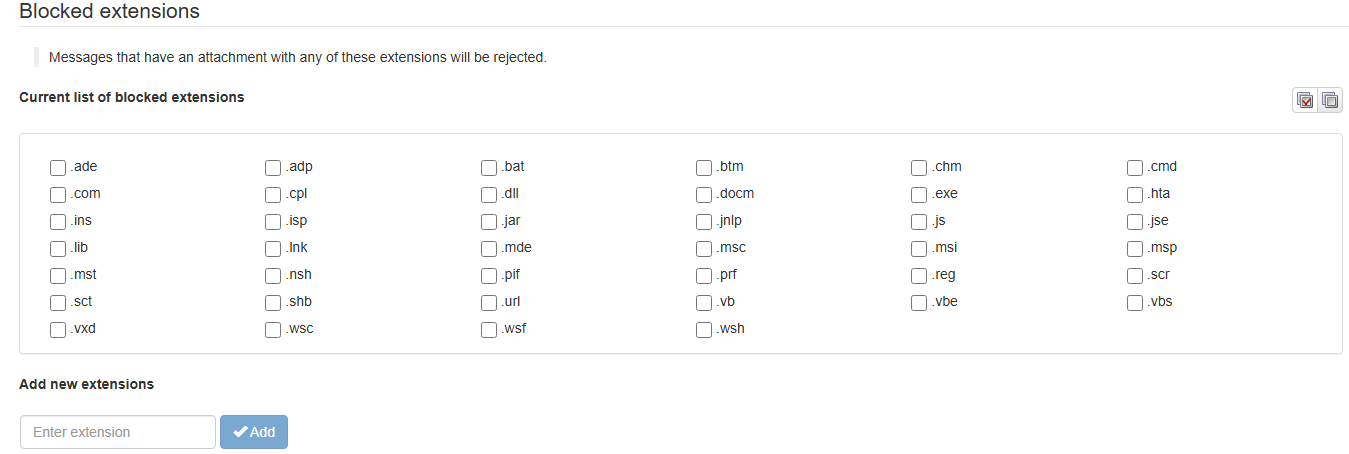
Blocked Extensions
Block specific file types and reject any message containing them. Already have defaults? Customize away.
Managing Blocked Extensions
Enable or Disable Extensions
In the Blocked extensions panel, check the box next to any extension type you want to block (or uncheck to allow it).
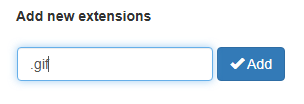
Add Custom Extensions
Click the Add button to block file types not on the default list.
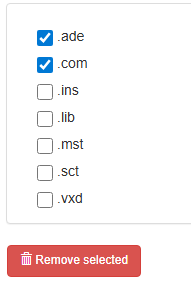
Remove Extensions
Uncheck extensions you no longer want to block, then click Remove Selected to delete them.
Save Changes
Click Save at the bottom of the page, nothing happens until you do.
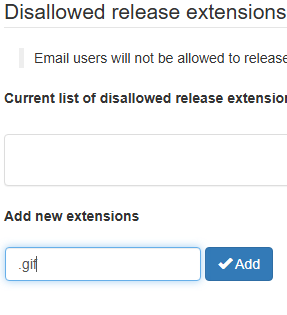
Disallowed Release Extensions
Stop your domain users from releasing quarantined messages that contain specific file types. Useful for preventing users from accidentally (or intentionally) extracting dangerous files.
Restriction Options
Beyond just blocking extensions, you can enable smarter threat detection for email attachments.
Available Protections
Password-Protected Archives Blocks messages with encrypted attachments like password-protected ZIP files. These are sneaky, can’t scan inside, so they get rejected.
Potentially Unwanted Attachments Rejects dangerous inbound content including compressed executables, password tools, and remote access applications. Basically anything that looks sketchy.
Hidden Executables Scans ZIP, TAR, GZIP, BZIP2, and 7Z archives for concealed executables and rejects suspicious messages. Attackers love hiding .exe files inside archives, this catches them.
Macro-Containing Documents Rejects incoming emails with Office documents (.doc, .xls, .ppt) containing macros. Macros are a classic attack vector for spreading malware.

Advanced Options
Message Link Size Limit
Restricts how much data can be downloaded per message (in bytes). The system checks links to executable files against antivirus databases, so heavy downloads get extra scrutiny.
Maximum MIME Defects
Sets tolerance for malformed messages. The system normally rejects defective emails, but this lets you configure how strict it is.
Scanned Link Extensions
Specifies which file types downloaded from email links undergo virus scanning when link size limits are enabled. Works in tandem with your blocked/scanned extension lists.
Warning
Remember to Save at the bottom of the page after making any changes. It’s the most common reason people think their settings didn’t work.