Sharing Settings
What Is Sharing?
Sharing lets you give other users on your domain access to parts of your account — things like your inbox, calendar, contacts, notes, tasks, sent items, junk mail, and deleted items. It’s useful for teams that need visibility into each other’s mail, or for situations like an assistant managing someone else’s inbox.
Sharing Settings is also where you can see folders that others have shared with you.
Accessing Sharing Settings
Click on Settings in the top bar.
Select Sharing from the left-hand sidebar.
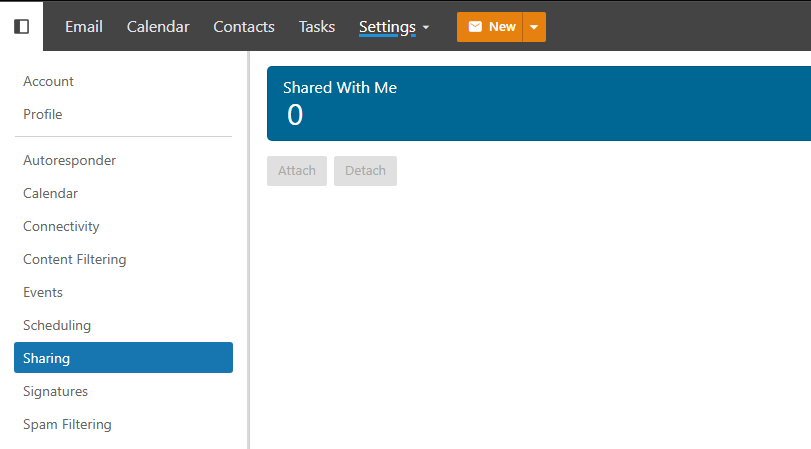
Shared With Others
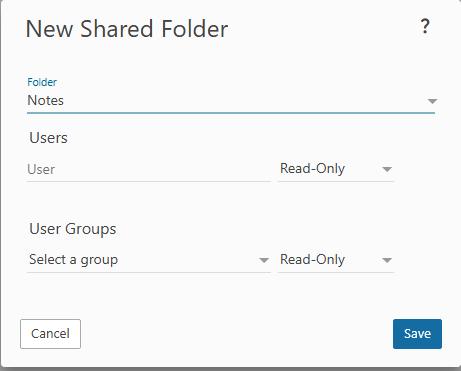
The Shared With Others tab shows everything you’ve currently shared out to other users. This is your central view for managing what you’ve opened up and to whom.
Sharing a Folder
Go to the Shared With Others tab and click New.
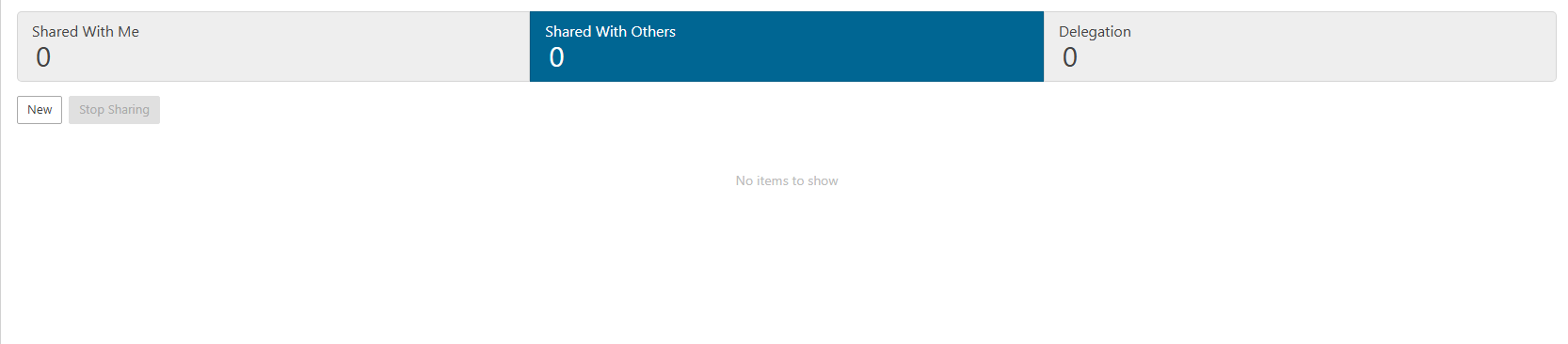
Select the folder or item type you want to share. You can share any of the following:
- Inbox — your incoming mail
- Sent Items — emails you’ve sent
- Deleted Items — your trash folder
- Junk Email — your spam folder
- Calendar — your events and appointments
- Contacts — your saved contacts
- Notes — your personal notes
- Tasks — your to-do list
Select the user you want to share with by entering their email address or searching your domain.
Set the permission level for that user:
- Availability Only — for calendars; lets the user see when you’re free or busy without revealing event details
- Read Only — the user can view the contents but cannot make changes
- Read/Write — the user can view and edit items
- Read/Write/Delete — full access, including the ability to permanently delete items
Click Save. The folder will now be accessible to the selected user.
Note
Be mindful of what permission level you assign. Read/Write/Delete gives the other user full control, including the ability to permanently remove items from your account.
Delegations
The Delegations tab shows folders and items that other users have shared with you. If a colleague has granted you access to their inbox or calendar, it will appear here.
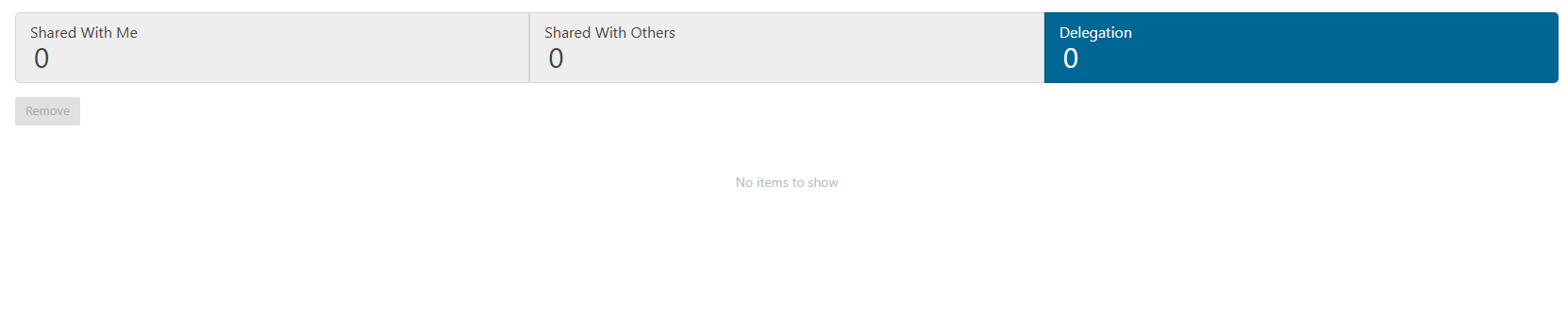
From this view you can access delegated folders directly without leaving your own account — useful for assistants or shared team inboxes where multiple people need to monitor and respond to the same mailbox.
Revoking Access
To stop sharing a folder, go to the Shared With Others tab, find the share you want to remove, and delete it. The other user will immediately lose access.