Events Settings
What Are Events?
Events are automated triggers that watch for specific things happening on the mail server and then perform an action in response. Unlike Content Filtering — which focuses on the content of individual messages — Events are broader and can respond to account-level activity such as receiving a new message, approaching your storage quota, or a failed login attempt.
Think of Events as “if this happens, do that” automation rules for your account.
Events vs. Content Filtering
| Content Filtering | Events | |
|---|---|---|
| Focuses on | Message content (subject, body, sender) | Account-level activity |
| Triggers on | Incoming messages | System events (logins, quota, delivery) |
| Best for | Sorting, blocking, or flagging specific emails | Alerts, notifications, and account monitoring |
Accessing Events Settings
Click on Settings in the top bar.
Select Events from the left-hand sidebar.
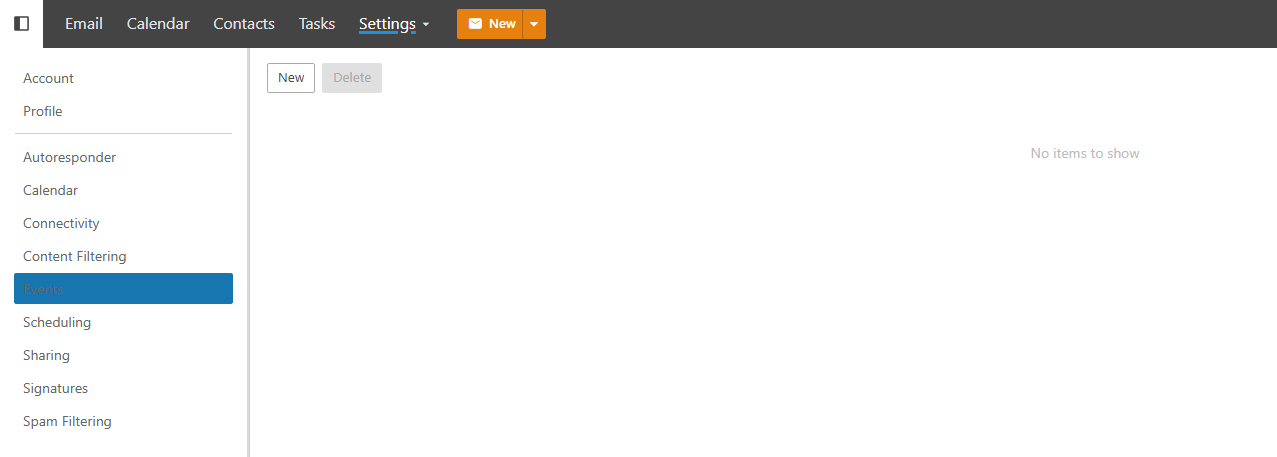
Creating an Event
Click New to create a new event.
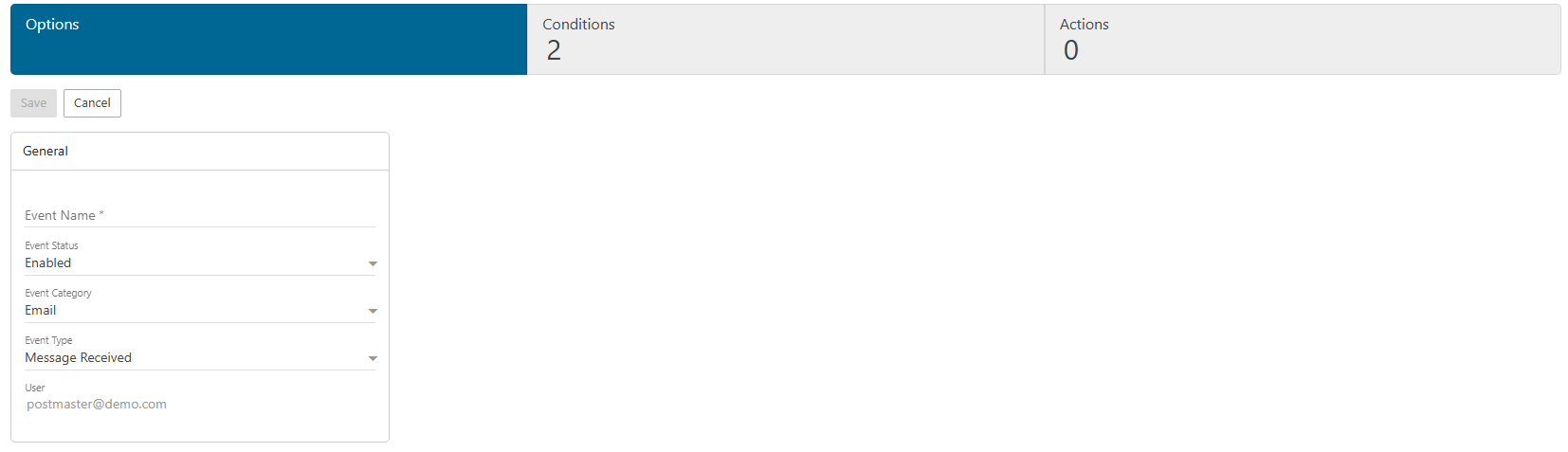
Give your event a descriptive Name so it’s easy to identify later (e.g. “Alert: Storage Nearly Full”, “Notify: Failed Login”).
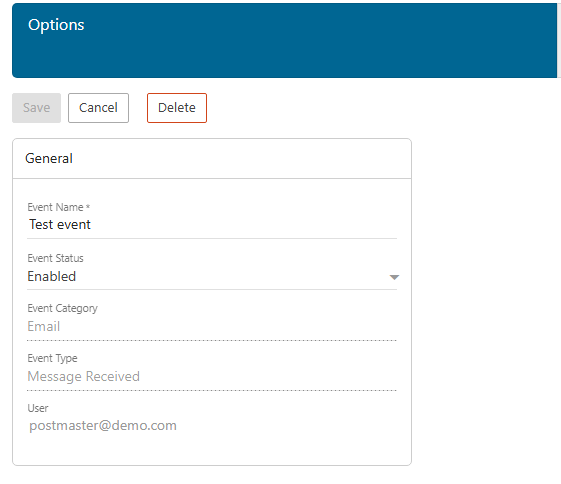
Setting Conditions
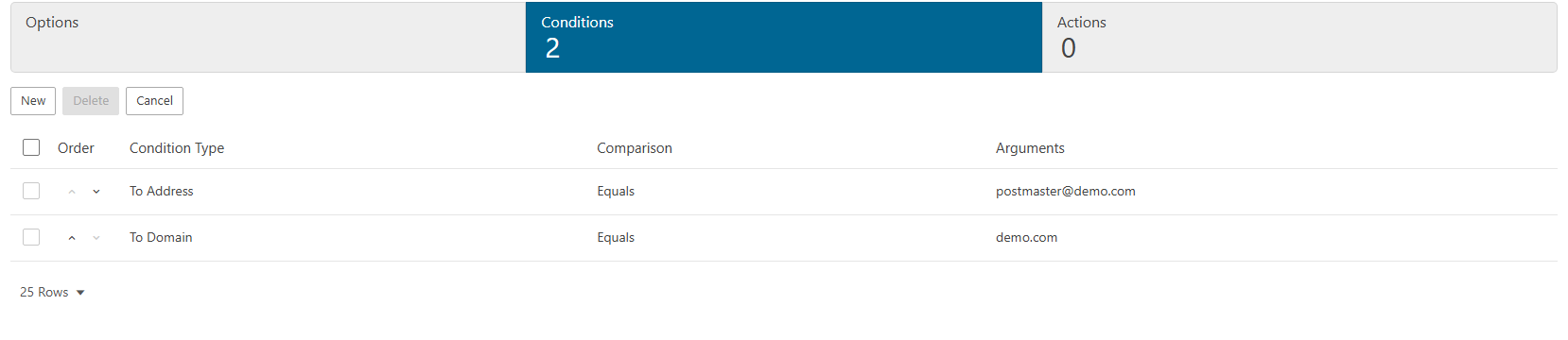
Switch to the Conditions tab to define what triggers this event. Conditions are based on account-level activity, such as:
- Message Received — fires when a new email arrives in your account
- Message Sent — fires when you send an email
- Disk Usage — triggers when your storage reaches a certain threshold (e.g. 80% full)
- Login Failure — fires when an incorrect password is used to attempt access to your account
- Spam Received — triggers when a message is classified as spam and filtered
You can also define thresholds and match criteria to narrow down exactly when the event should fire.
Setting Actions
Switch to the Actions tab to define what happens when your conditions are met. Available actions include:
- Send Email — fire off a notification email to yourself or another address
- Send SMS — receive a text alert (if configured by your administrator)
- Execute Command — run a server-side command (advanced, typically admin use)
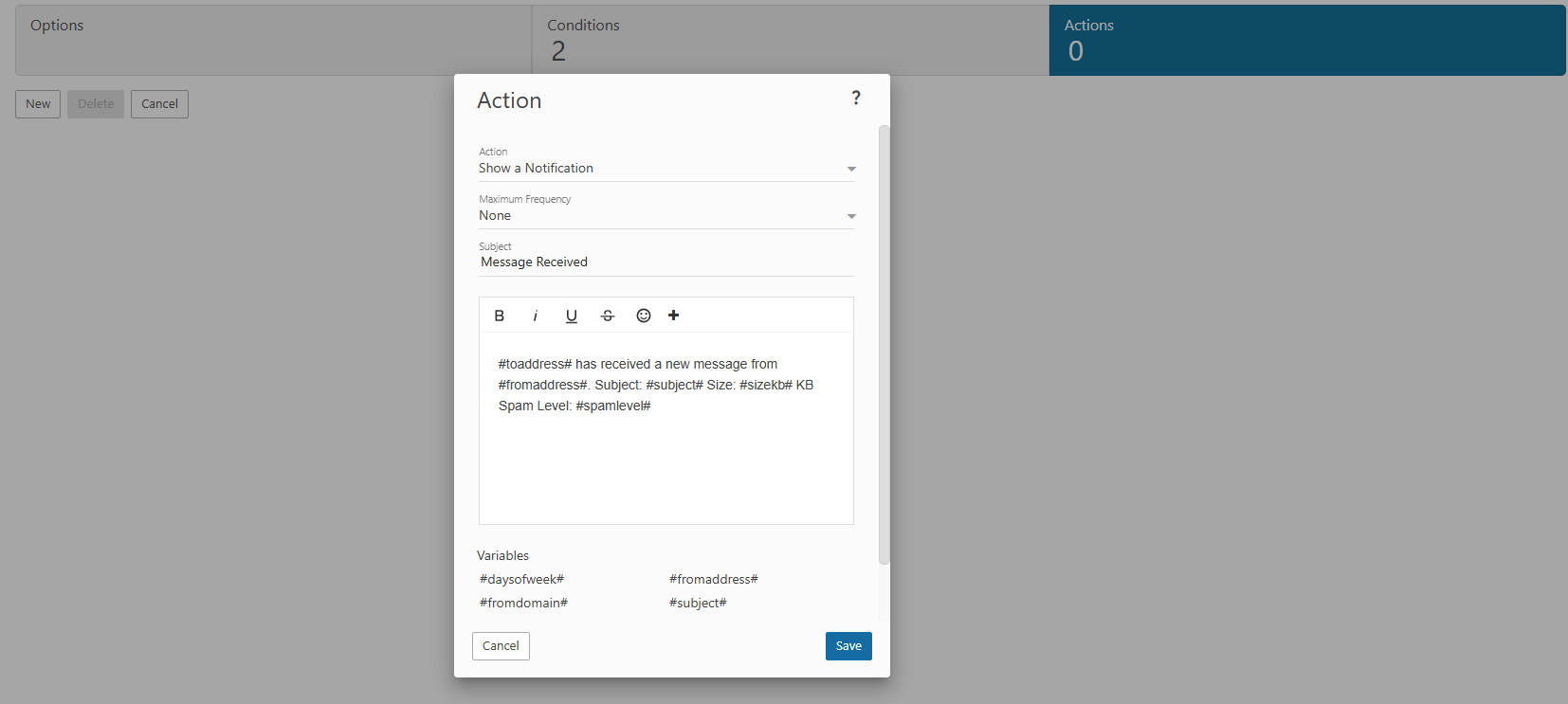
- Once your conditions and actions are set, click Save. The event will begin monitoring immediately.
Common Use Cases
Storage alert: Set a condition for disk usage reaching 85% and an action to send yourself an email notification. This gives you time to clean up before hitting your limit and having mail start bouncing.
Failed login alert: Trigger an email notification whenever a login failure occurs on your account. If you see an alert you didn’t cause, it could indicate someone is attempting to access your account and you should change your password immediately.
Auto-notification on received mail: Send an SMS or secondary email alert whenever you receive a message — useful if you need real-time awareness of incoming mail outside of webmail.
Note
Events are more powerful than Content Filtering but also more technical. If you only need to sort or filter messages, Content Filtering is the simpler tool. Use Events when you need to react to account-level activity or set up proactive monitoring.