Setting Up Autoresponder
What Is the Autoresponder?
The Autoresponder automatically replies to incoming emails with a preset message. It’s most commonly used for out-of-office notices, vacation replies, or letting senders know you’re temporarily unavailable and when they can expect a real response.
Setting Up the Autoresponder
Click on Settings in the top bar.
Select Autoresponder from the left-hand sidebar.
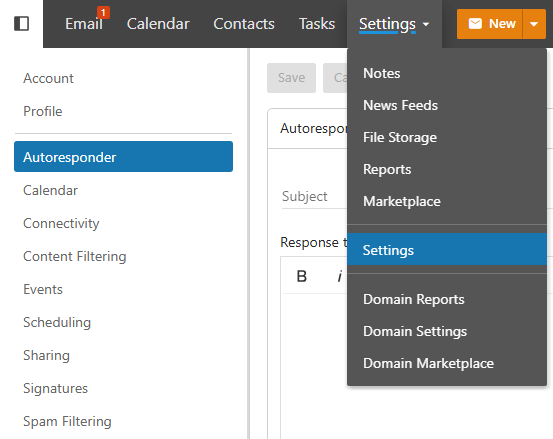
Configure your response messages (see below), then click Save.
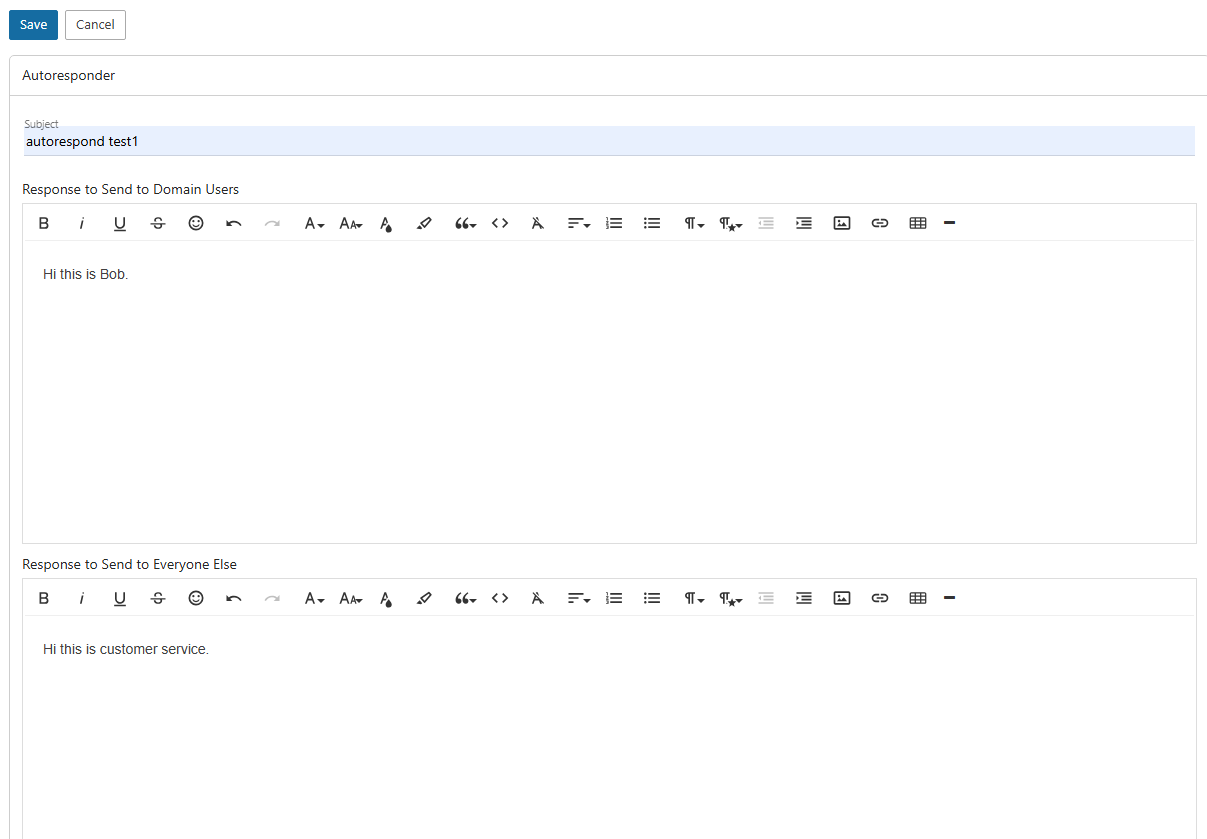
Response Types
SmarterMail lets you set two separate autoresponse messages depending on where the sender is from:
Response to Domain Users This message is sent to anyone emailing you from the same domain as yours (e.g., colleagues within your organization). You might want a more casual or internal-facing message here.
Response to External Senders This message is sent to anyone emailing you from a different domain — clients, partners, vendors, or anyone outside your organization. This is typically the more formal, public-facing out-of-office message.
Having two separate messages lets you tailor the tone and content appropriately — internal teammates might need different details than external contacts.
Tips for a Good Autoresponse
- Set a date range if your autoresponder supports it, so it turns off automatically when you return.
- Include your return date so senders know when to expect a real reply.
- Add an alternate contact for urgent matters so senders aren’t left completely without help.
- Avoid including sensitive info like your exact location or personal schedule in external responses.
Note
The autoresponder will only send one reply per sender within a set period to avoid reply loops. If the same person emails you multiple times while your autoresponder is active, they won’t receive a duplicate each time.